
To Create a VPS check this first. Create Ubuntu VPS on Hetzner
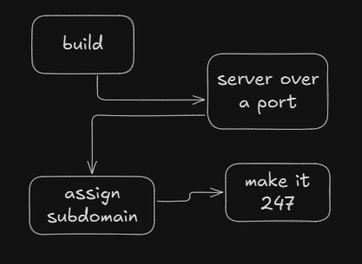
This guide mirrors what platforms like Vercel do:
- fetch your code,
- build it,
- run it on a port,
- keep it online 24/7,
- (later) put Nginx in front.
SSH into your VPS (as your non-root user)
ssh jervi@<your-server-ip>
Replace
<your-server-ip>with your actual IP.
Make sure your firewall allows SSH:sudo ufw allow 22/tcp.
Install Node.js (LTS) using nvm (recommended)
# one-time nvm install
curl -fsSL https://raw.githubusercontent.com/nvm-sh/nvm/v0.39.7/install.sh | bash
# load nvm for current shell
export NVM_DIR="$HOME/.nvm"
. "$NVM_DIR/nvm.sh"

# install and use latest LTS
nvm install --lts
nvm use --lts

# verify
node -v
npm -v
If you prefer
apt/NodeSource, that also works.nvmkeeps Node per-user and is easy to upgrade.
Clone your repository & install dependencies
# choose a home dir for apps
mkdir -p ~/apps && cd ~/apps

# clone your Next.js repo
git clone https://github.com/<you>/<repo>.git my-next-app
cd my-next-app

# install deps (npm shown; yarn/pnpm also fine)
npm i
If your project uses a private repo, set up a deploy key or use a PAT.
Prepare environment variables
Create a production .env in the project root (don’t commit secrets):
nano .env
Example:
NODE_ENV=production
NEXT_PUBLIC_API_BASE=https://api.example.com
# any other secrets...
Save & exit.
Build the app
npm run build
- Fix any errors that appear (missing env vars, TypeScript issues, etc.).
- After a successful build, you’ll have a
.next/folder.
Run the app on a custom port (test first)
Locally test on the server (foreground):
# IMPORTANT: Next.js uses "next start" for production
npx next start -p 3001
If it boots, open another terminal and allow the port through UFW:
sudo ufw allow 3001/tcp
Now hit http://<your-server-ip>:3001 from your browser.
When done testing, stop the foreground process (Ctrl+C).
Keep it alive with PM2
Install PM2 globally (per current Node):
npm i -g pm2
Start your app with PM2:
# Option A: use your package.json start script (recommended)
# package.json should have: "start": "next start -p 3001"
pm2 start "npm run start" --name nextjs-app

# Option B: invoke next directly via npx
# pm2 start npx --name nextjs-app -- next start -p 3001
Check status & logs:
pm2 status
pm2 logs nextjs-app
Make PM2 auto-start on reboot and save the process list:
pm2 startup
# follow the command PM2 prints (usually sudo env PATH=... pm2 startup systemd -u jervi --hp /home/jervi)
pm2 save
From now on, if the server reboots, PM2 will bring your app back.
Quick health check
curl -I http://127.0.0.1:3001
You should see 200 or 304 from your Next.js server.
Firewall recap (UFW)
If you haven’t already:
sudo ufw allow 22/tcp     # SSH
sudo ufw allow 3001/tcp   # Next.js app port (temporary until we add Nginx)
sudo ufw status
Tip: When you later put Nginx in front on ports 80/443, you can close 3001 publicly and keep it internal.
Operational tips
- Deploy updates
bash
cd ~/apps/my-next-app git pull npm i --production=false # or your lockfile flow npm run build pm2 restart nextjs-app - View live logs
pm2 logs nextjs-app - Update Node (via nvm)
nvm install --lts && nvm use --lts && pm2 restart nextjs-app - Change port
Update yourstartscript or PM2 command to-p 3002, allow via UFW, then restart.
What about Nginx, domain & HTTPS?
We’ll cover that in another tutorial:
- Reverse proxy on :80 / :443 to your app on :3001
- Free TLS with Let’s Encrypt (certbot)
- Auto-renewal & hardened TLS settings
- Optionally close port 3001 to the public
👉 Coming soon: “Put Nginx + HTTPS in front of your Next.js VPS app.”
Read more
Set Up an Expo Build Local Environment on WSL2
Set up a full Expo and Android build environment on WSL2 Ubuntu 24.04. Install Android SDK, NDK, Java 17, Node 20, EAS CLI, and configure all environment variables.
Domain name and HTTPS on Ubuntu VPS with Nginx
Register a domain on Namecheap, point it to your VPS, configure Nginx with sites-available/sites-enabled, and secure it with free SSL using Certbot.